
Appearance
Getting Started
This walks through building a small app from a blank slate — creating the app, adding a collection, defining its fields, choosing how it's displayed, and adding a button that does something. Every step below is something you click through in Axiomers itself.
1. Create an app
From the app gallery, click New App. Give it a name and an optional description, then choose Blank as the starting point (there are also pre-built templates you can start from instead). Click Create.
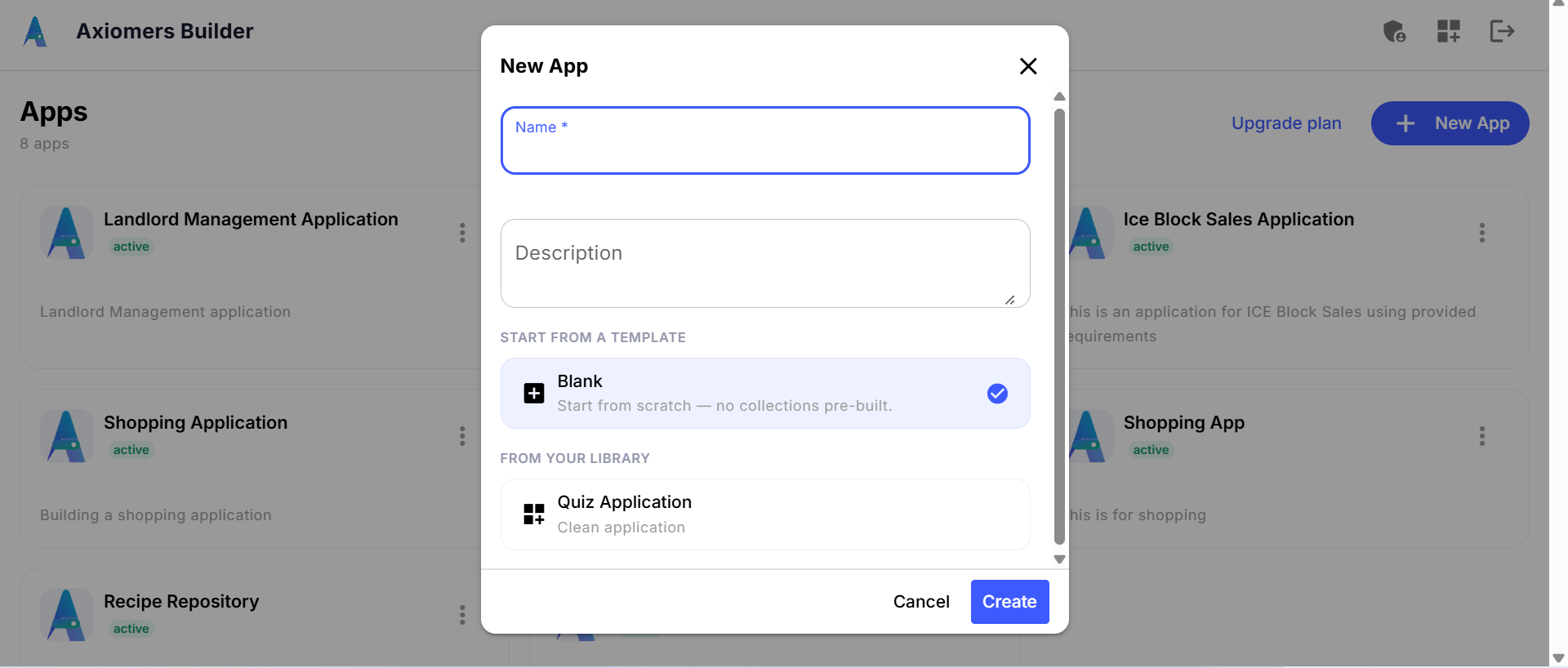
Every app you create is completely separate from every other app — its own data, its own users, nothing shared between them.
2. Add your first collection
A collection is a table of records — think "Products," "Orders," "Shifts," "Customers."
From your new app's dashboard, click Open Schema Builder.
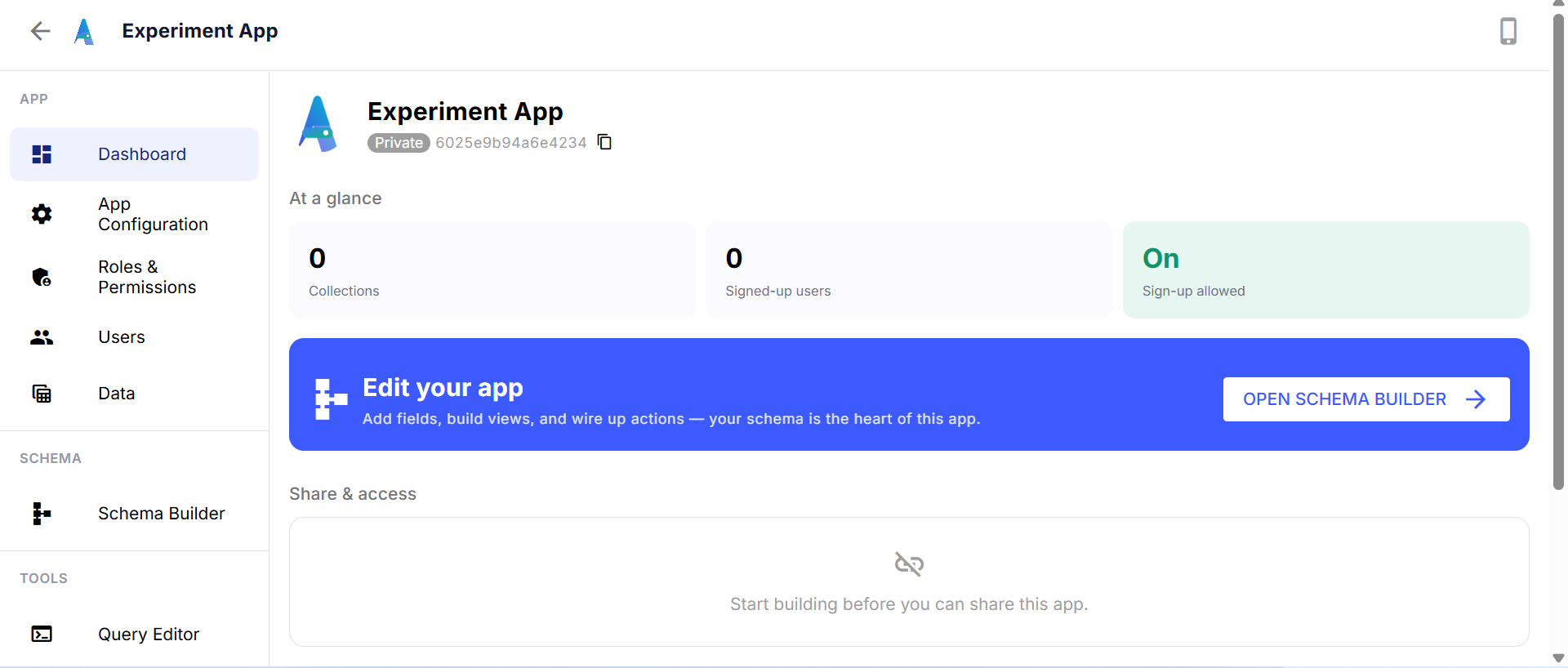
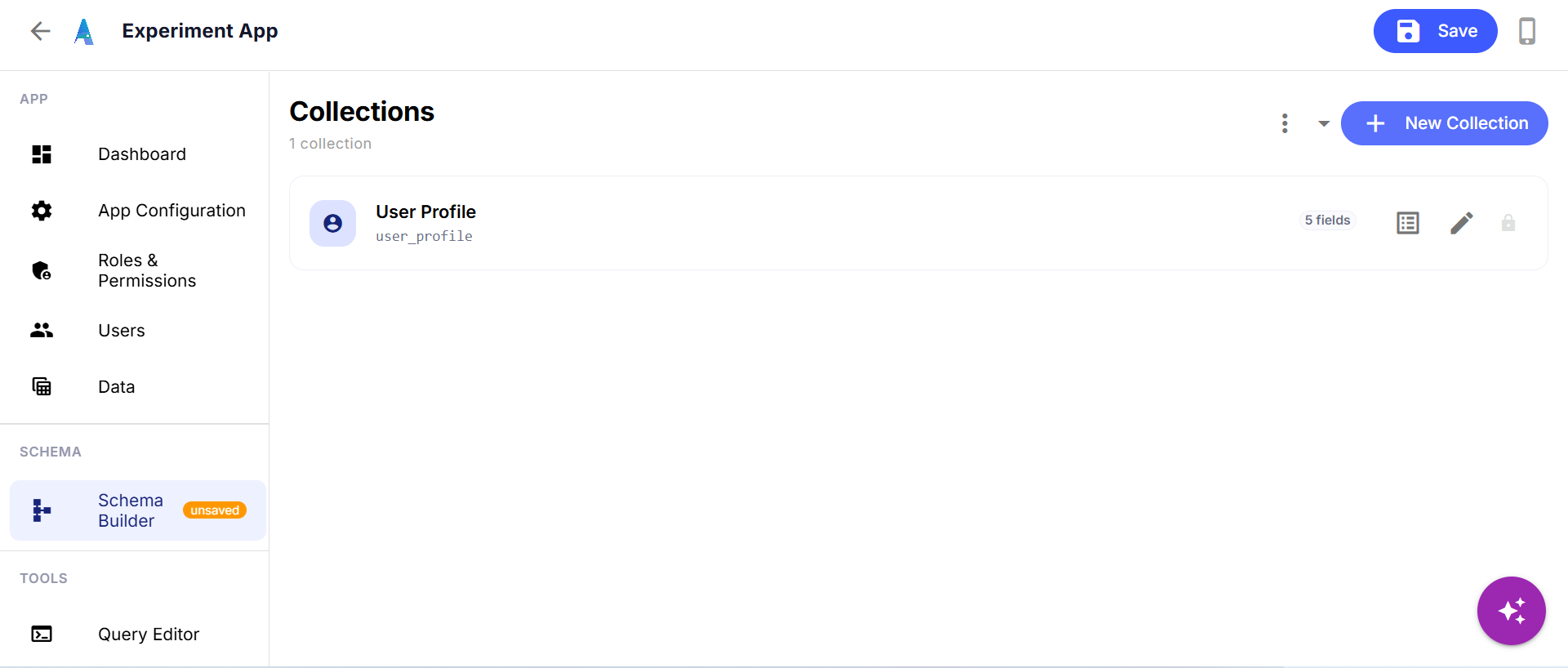
Every app starts with one collection already in place — User Profile — since every app needs somewhere to store its users. Click New Collection to add your own.
Give it a:
- Name — the internal identifier (lowercase, no spaces — you can't change this later).
- Label — the human-readable name shown in the sidebar.
- Icon and Order — how it looks and where it sits in the sidebar.
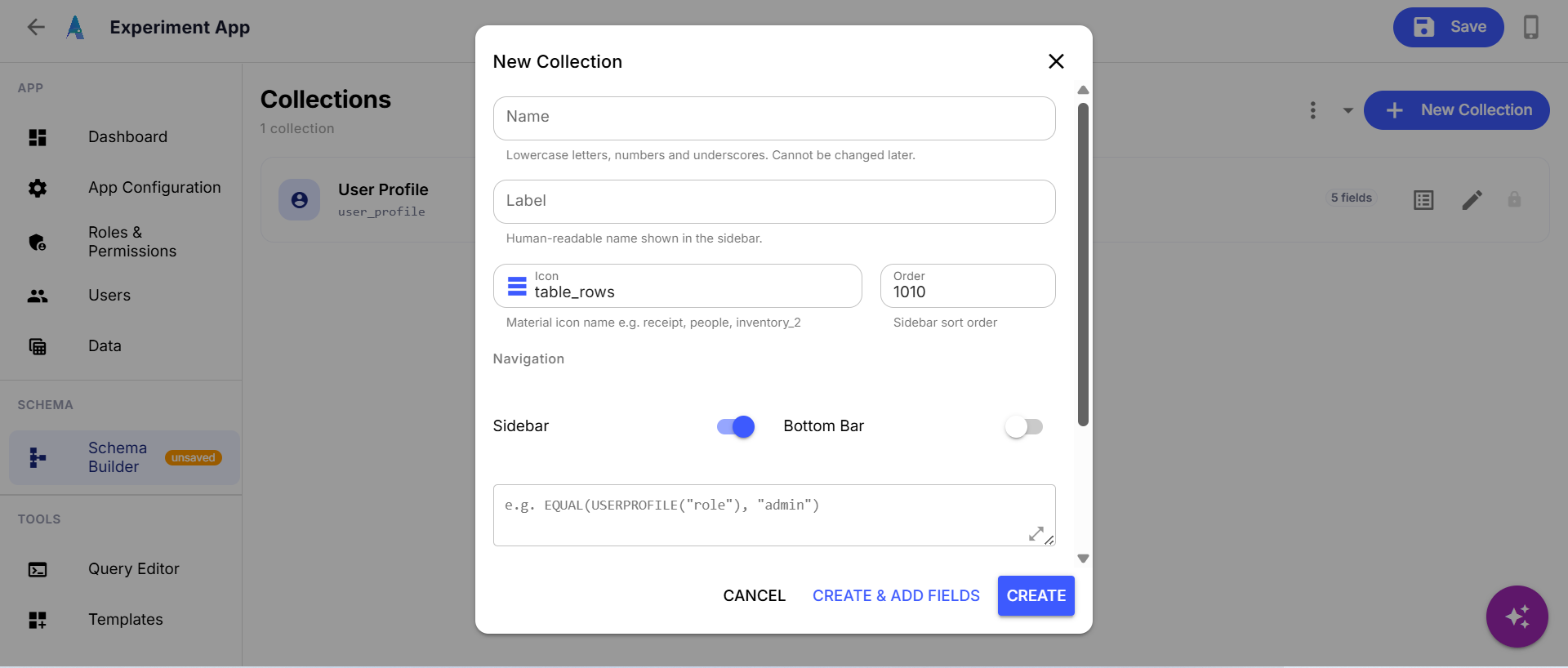
Click Create & Add Fields to jump straight into defining what this collection stores.
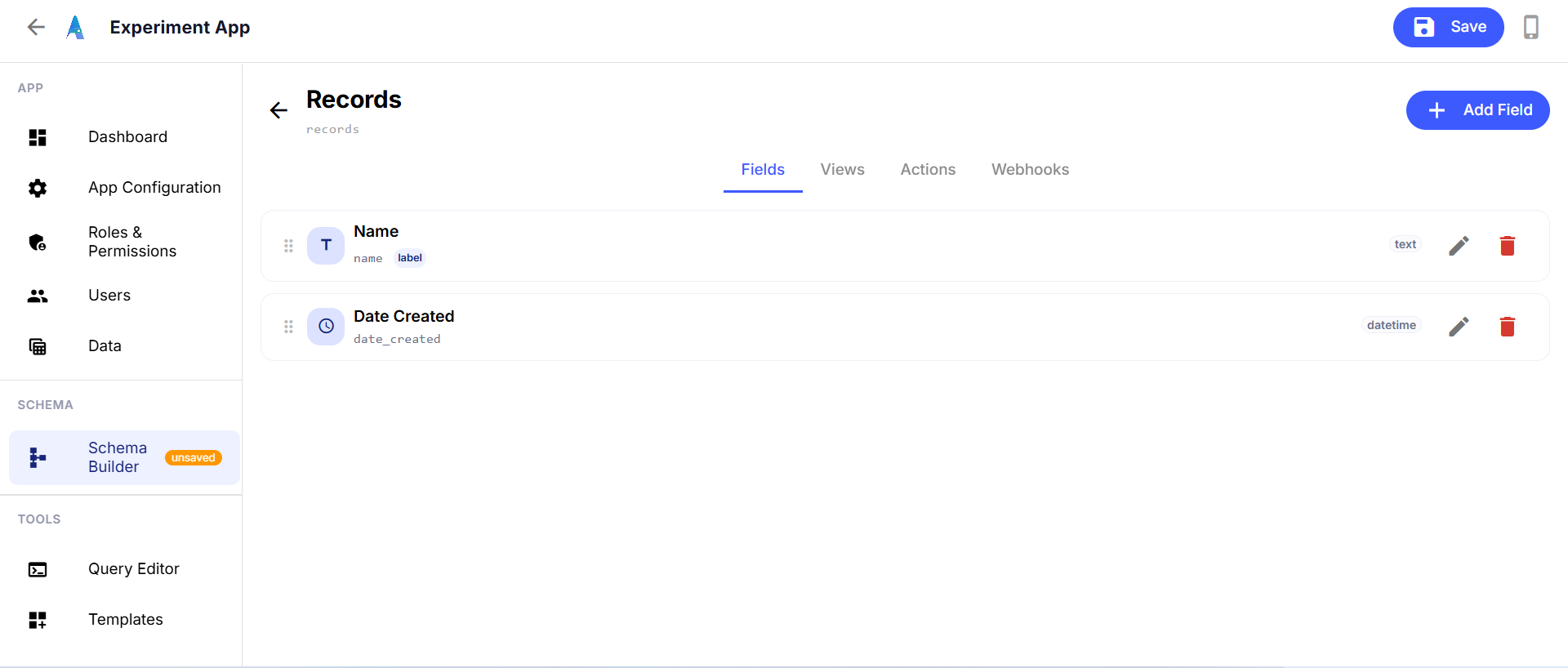
Every new collection starts pre-built with a Name field, a Date Created field, a table view, a detail view, and Edit/Delete/Create buttons already wired up — so it's usable immediately, before you've customized anything.
3. Add fields
Click Add Field to add a column to your collection. Give it a Key, a Label, and a Type — text, number, price, date, a dropdown of options (enum), a reference to another collection, an image, a signature pad, a barcode, and more. See Collections & Fields for the full list and what each one is for.
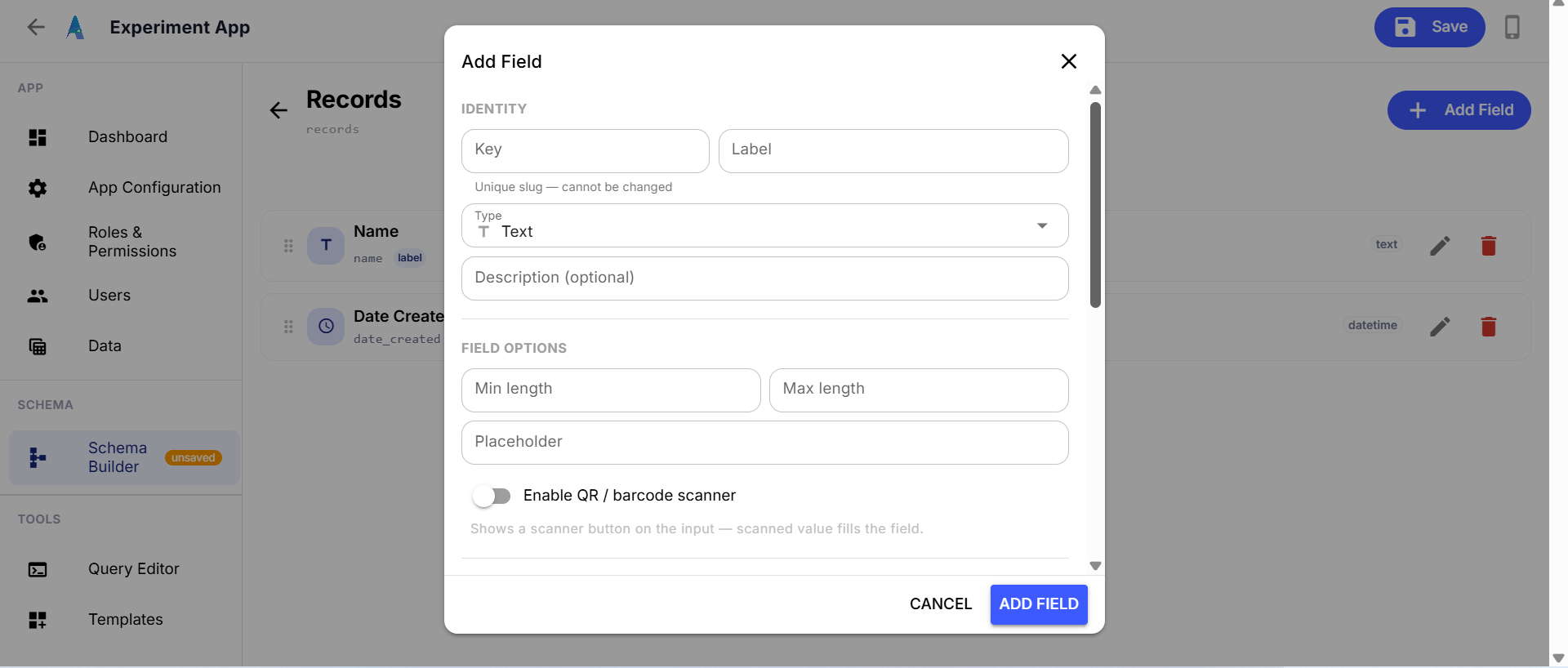
Two settings worth knowing from the start:
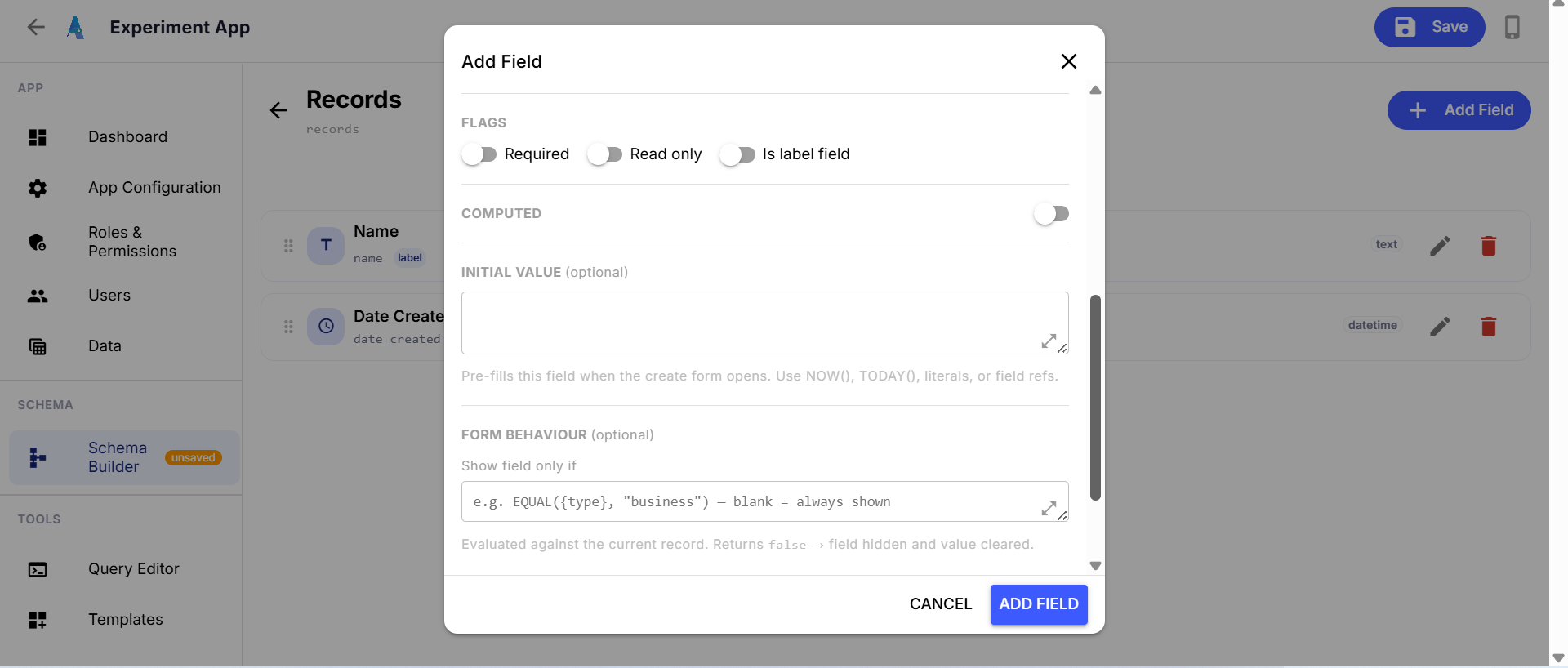
- Is label field — mark one field per collection as the one used to identify a record elsewhere (dropdowns, reference pickers). Usually a name or title field.
- Computed — instead of being typed in, a field's value can be calculated from a formula (e.g. quantity × price). See Expressions.
4. Choose how it's displayed
Every collection has one or more views — table, card, calendar, chart, dashboard, or a detail page for a single record. Click the Views tab, then Add View, to add or customize one. Pick a default view for the collection from the dropdown above the list.
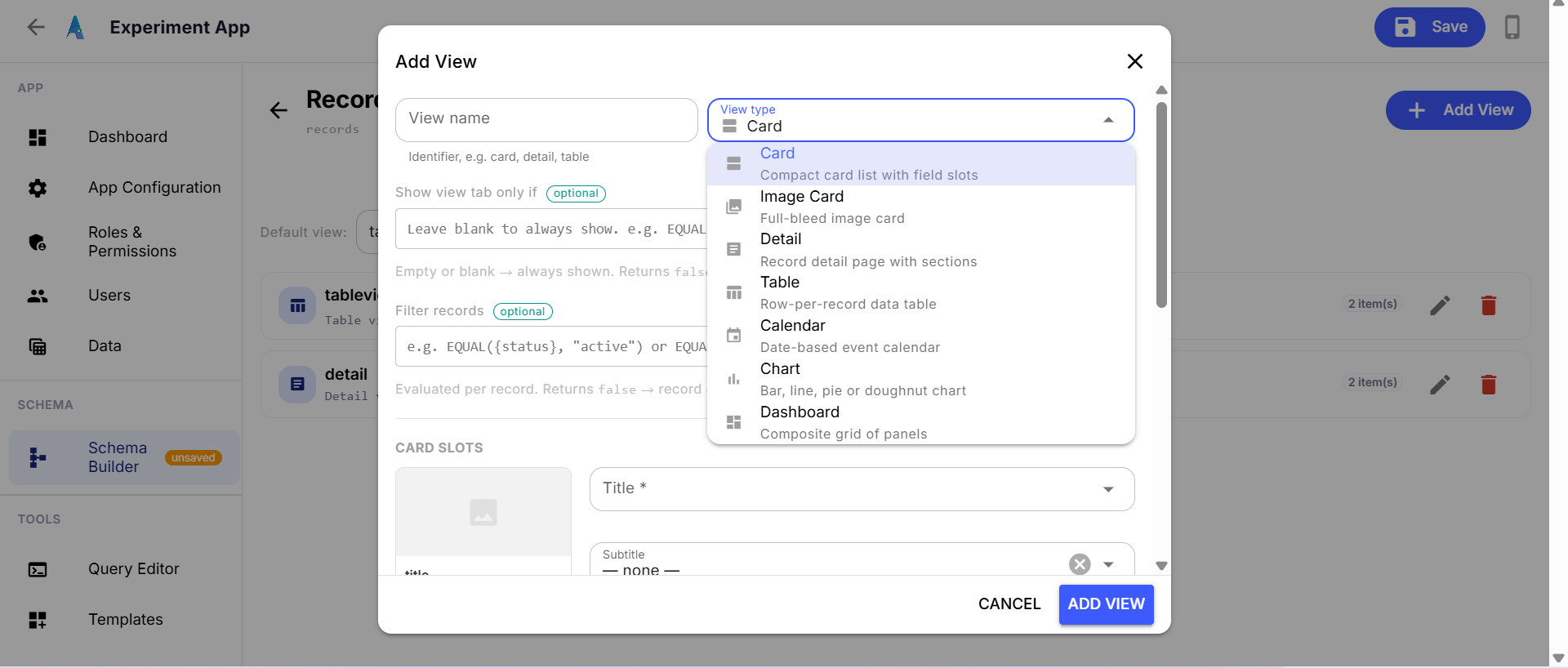
See Views for what each view type is good for.
5. Add an action
Actions are buttons that do something — edit a field, create a related record, send an email, or run a whole sequence of steps. Every collection already comes with Edit, Delete, and Create — anything beyond that is up to you.
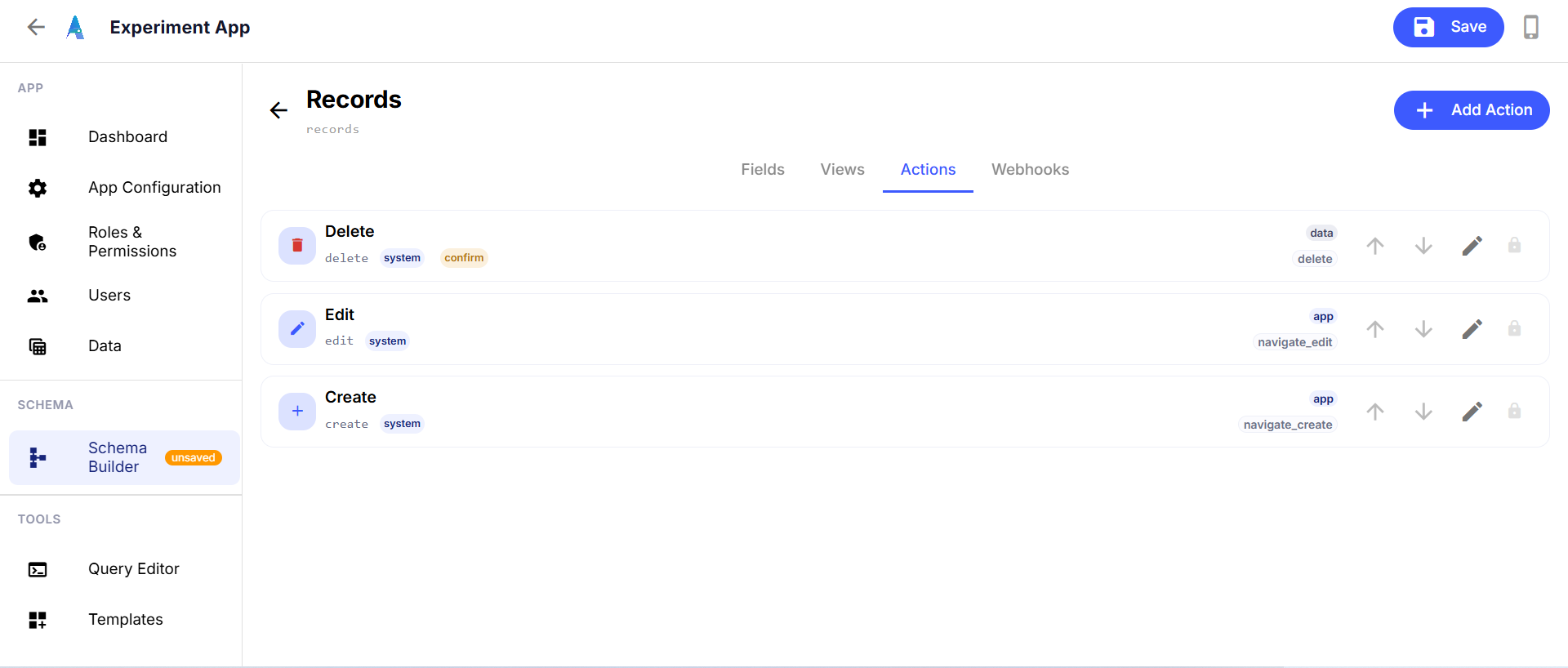
Click Add Action to define your own — give it a key, label, icon, and colour, then choose whether it mutates data, opens an external link, or navigates somewhere in the app.
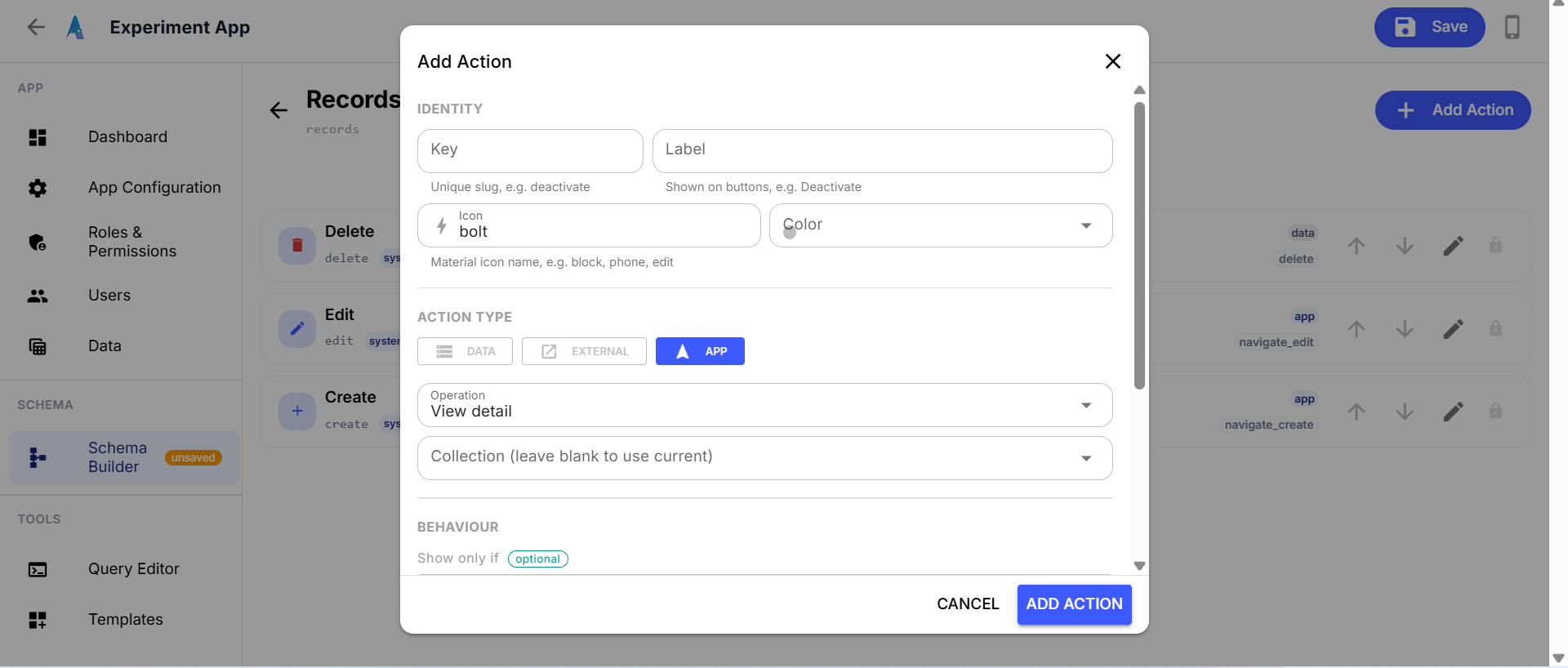
See Actions & Workflows for the full picture, including buttons that run automatically after a record is created, updated, or deleted (no click needed).
6. Set up who can do what
Before sharing the app, mark a collection as the user profile collection (there's a one-click button for this in the Schema Builder if you haven't added one yet) and set up roles — who can view, create, update, or delete records in each collection, and which role new sign-ups get by default. See Roles, Permissions & Users.
7. Share it
Open App Configuration to set a name, icon, brand colour, and decide whether sign-up is open to anyone or invite-only. Your app dashboard has a Share & access card with a web link and an App ID people can enter directly — see Branding, Access & Sharing.
Next steps
- Core Concepts — the vocabulary this whole builder is organized around.
- Collections & Fields — every field type and what it's for.
- Expressions — the formula language reference.